S3 Bucket and Proxmox Backup Server
S3 Bucket and Proxmox Backup Server
Login to your Atomidata account at https://app.atomidata.fi/ and go to Storage:
- Choose "New" to create S3 object storage
- Type in a name for the storage
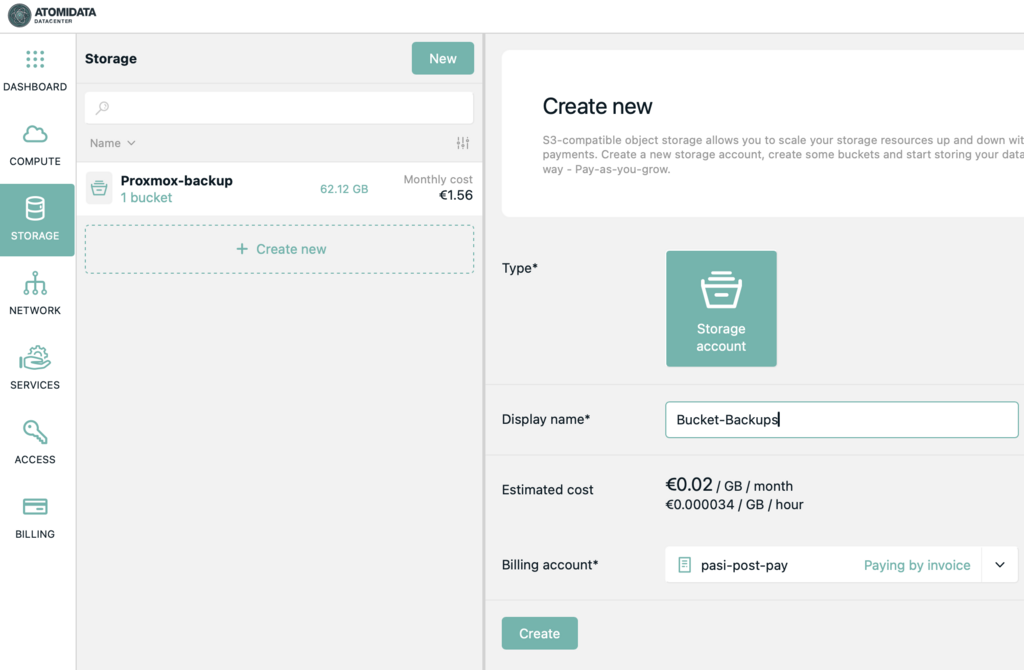
New Storage will have access key and secret key generated automatically to it.
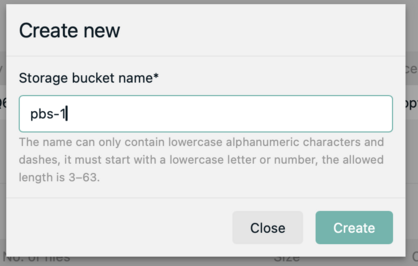
Then create new bucket by clicking "Create New" in Storage Buckets
- enter a name for the bucket
- in this example the name is pbs-1 and this same name should be used later
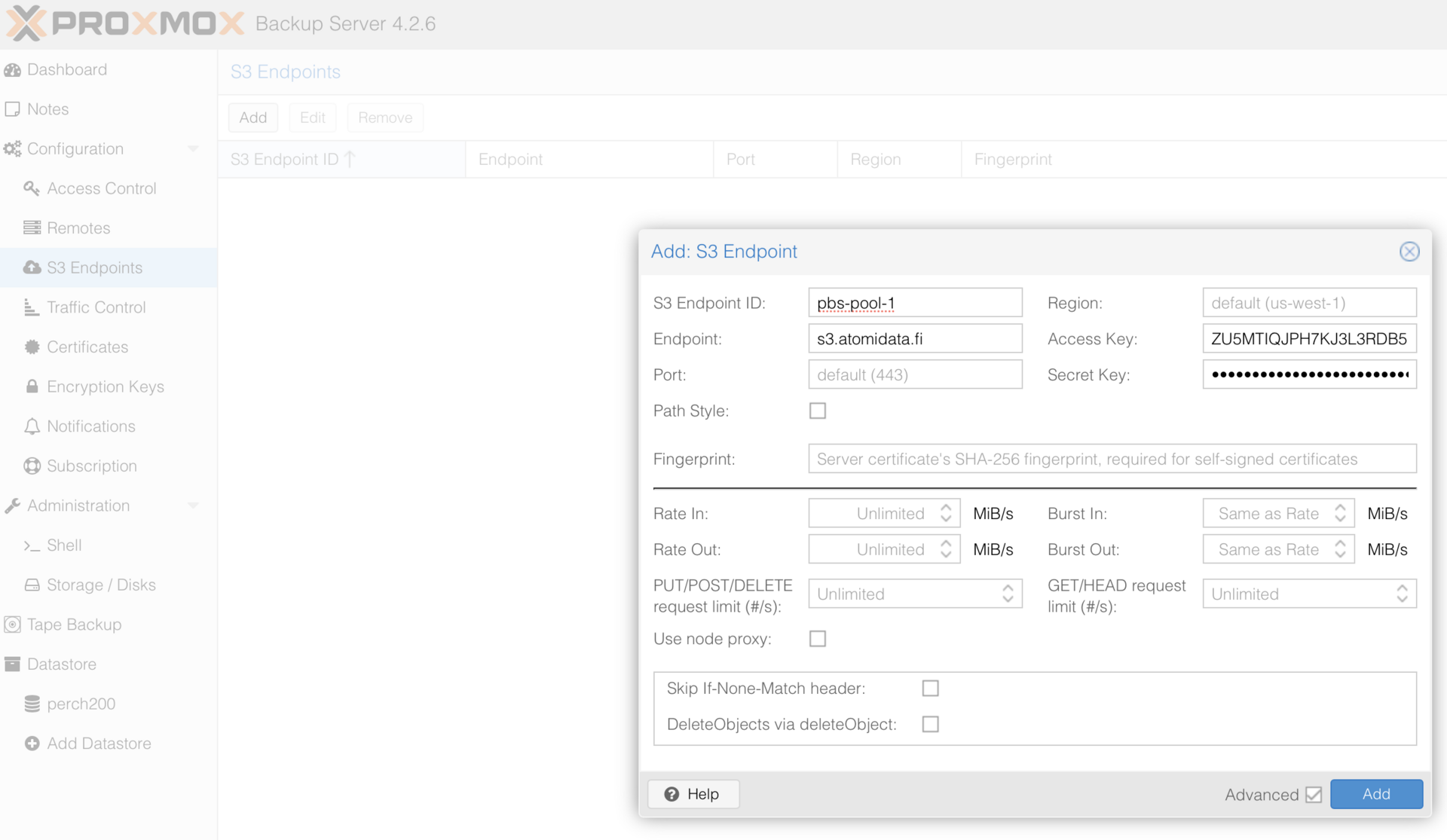
Login to your Proxmox Back Server
Add Datastore in Proxmox Backup Server
Configuration:
- Endpoint is s3.atomidata.fi
- Copy Access Key and Secret Key from Atomidata's S3 configuration
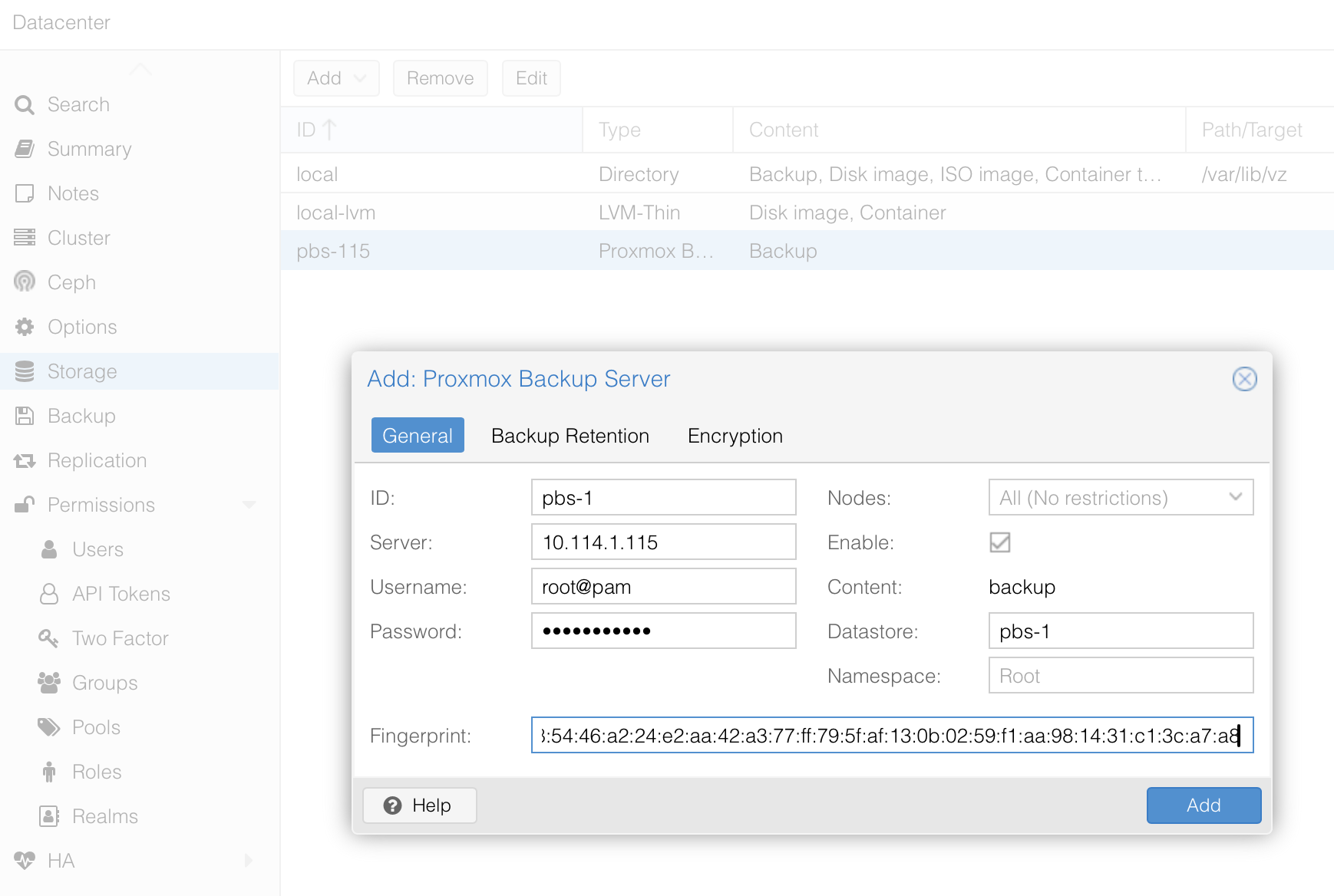
Login to your Proxmox VE server (=hypervisor)
Choose Datacenter configuration and Storage
Add new Proxmox Backup Server from "Add" dropdown menu
Configuration:
- ID
- Username
- Password
- Datastore: (name you have chosen to use)
- Copy Fingerprint from your Proxmox setup
Go from Datacenter to your Proxmox Backup Server and under Storage choose Add Datastore
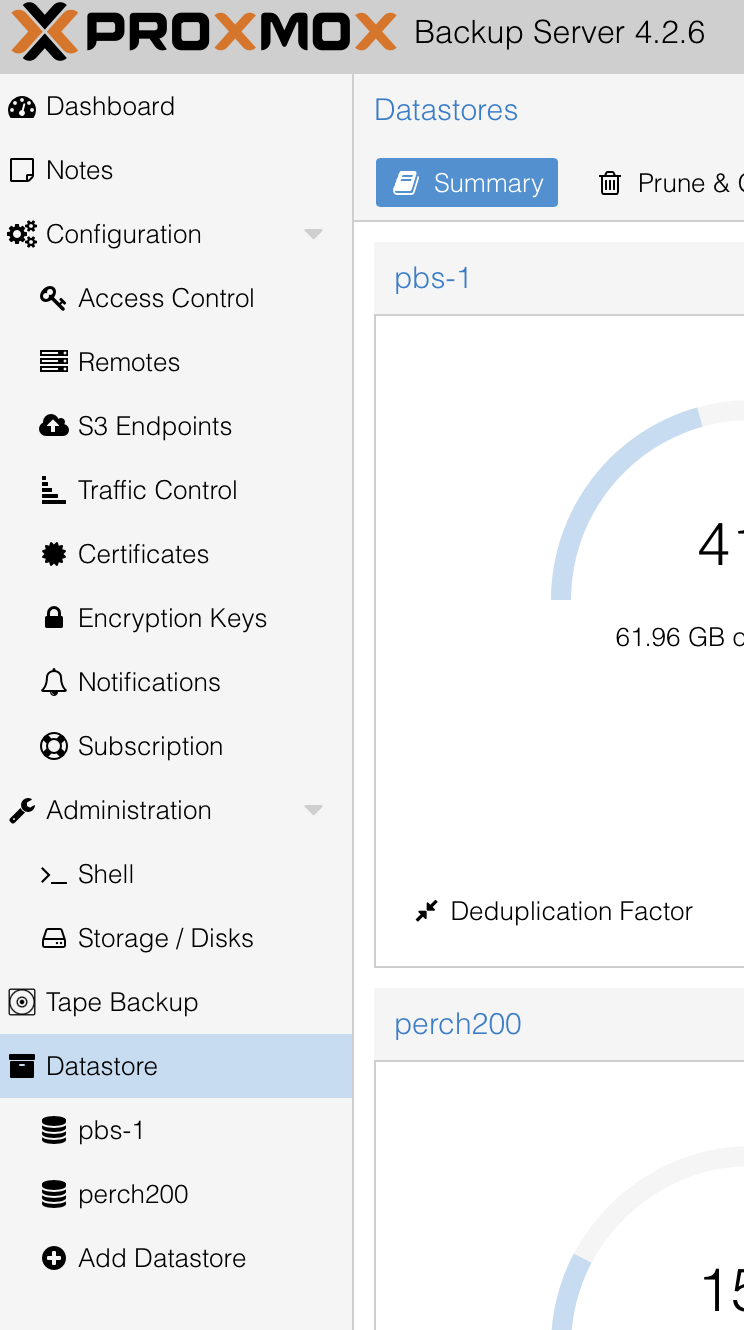
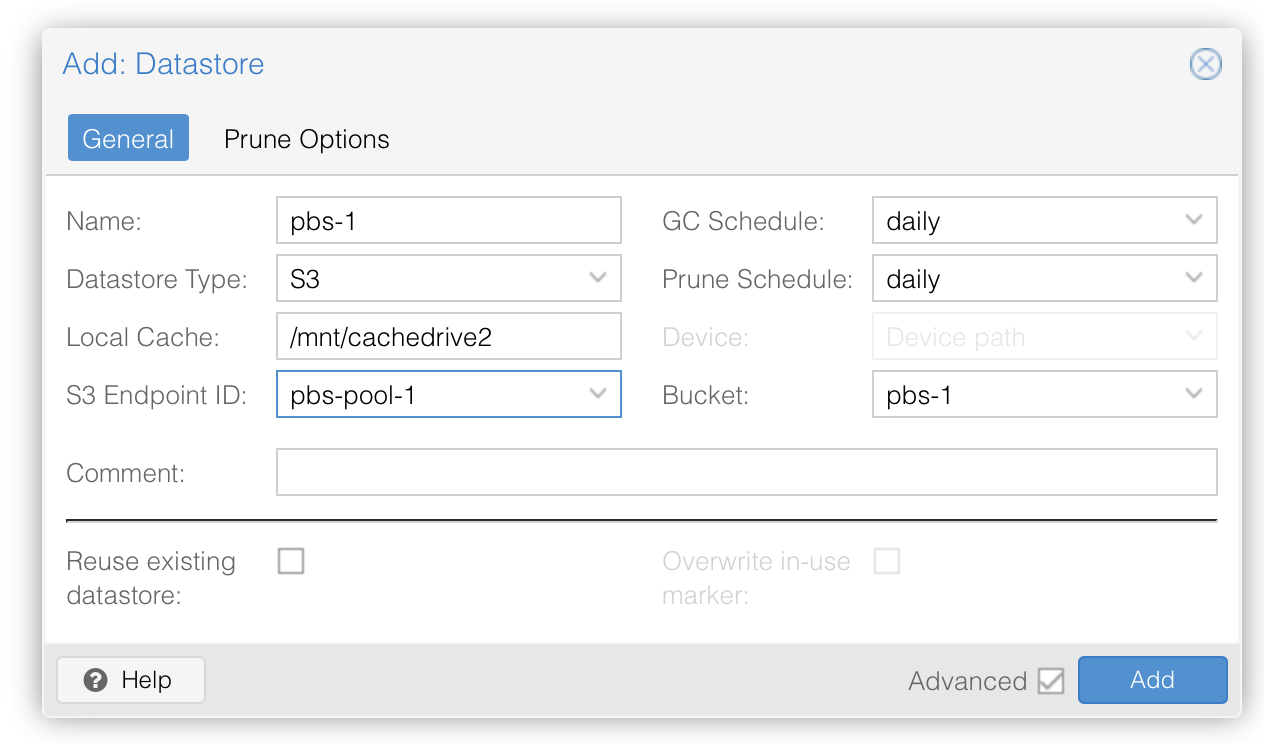
Use the same name as in S3 bucket in app.atomidata.fi (in this example pbs-1)
Choose datastore type S3
Local cache can be /mnt/cachedrive2
S1 Endpoint ID: (should show what options exist in your configuration)
Bucket: (show options available)
Once you have done your first backup - you should see data in your S3 bucket in app.atomidata.fi
